I recently spent an afternoon fixing a loose handle on a vintage chest of drawers. The screw holes had stripped over decades, making the brass pull feel wobbly and unreliable. In design terms, the affordance was still there, the shape told me to pull, but the execution failed. The connection between the user and the object had developed too much friction.
Our design systems often feel like that old chest. We build them with the best intentions, but the seams between Figma, documentation, and the final code base start to fray. We end up with a graveyard of components that look right but behave poorly. Using AI for design systems is not about replacing the designer. It is about using a new set of tools to tighten those loose screws and ensure the system remains a living, breathing artifact rather than a static monument.
When we talk about using AI for design systems, we are looking for ways to reduce the manual labor that kills a designer's flow state. We want to move away from the tedious work of renaming 500 layers or writing the same button documentation for the tenth time.
What you will have at the end
By following this guide, you will transition from a messy, disconnected set of UI elements to a structured system. You will have a cleaned-up set of design tokens that follow a consistent naming convention, a suite of automated documentation for your components, and a functional React component scaffolded by AI that connects directly to a backend.
Prerequisites
Before we start, you will need access to a few specific tools.
- A Figma account with an existing library, even if it is just a collection of buttons and inputs.
- Gemini, Google's AI assistant. We will use this for auditing and documentation because of its large context window and ability to process long JSON files.
- Lovable, an AI app builder. This will help us bridge the seam between design and code by generating functional components that use Supabase for data.
- Basic knowledge of JSON structure. You do not need to be a developer, but you should be comfortable looking at key-value pairs.
Step 1: Auditing the design artifacts
The first step in any system improvement is noticing the small things others ignore. We often have five different shades of gray that are almost identical. This creates visual noise and technical debt.
Open your Figma file and use a plugin like 'Design Tokens' or 'Variables Export' to get your current color and spacing values as a JSON file. Once you have that file, open Gemini.
Upload your JSON file to Gemini and use the following prompt:
'I am auditing my design system tokens. Look at the attached JSON file and identify colors that are within a 5 percent similarity range. Suggest a consolidated list of tokens using a semantic naming convention (e.g., surface-primary, text-secondary) instead of literal names like light-gray-1.'
Gemini will process the artifact and highlight the friction points in your current color palette. It will likely find that you have redundant hex codes. This audit is crucial because it aligns the team's mental model around a single source of truth.
| Current Token | Suggested Semantic Token | Reason |
|---|---|---|
| #F5F5F5 | surface-subtle | Used in 12 background layers |
| #F2F2F2 | surface-subtle | Redundant, only 1% difference |
| #333333 | text-primary | High contrast for legibility |
| #4A4A4A | text-secondary | Used for helper text |
Step 2: Generating documentation and legibility
Documentation is where design systems go to die. Designers hate writing it, and developers often find it too abstract to be useful. We can use AI to build a bridge across this seam.
Take a screenshot of a complex component in Figma, such as a multi-state data table or a navigation bar. If you need inspiration for the visual style of your components, you can use Midjourney to generate high-fidelity UI explorations that serve as a mood board for your system's aesthetic.
Upload your component screenshot or the component's property list to Gemini. Use this prompt:
'Act as a senior design systems engineer. Write a markdown documentation page for this component. Include the following sections: Overview, Physical Affordances (how it should feel when clicked or hovered), Usage Guidelines, and a Table of Properties. Use a clear, technical tone that prioritizes legibility.'
This process turns a visual artifact into a shared language. You are not just describing what the component looks like, you are explaining how it works. This is a great time to reference our thoughts on /blog/ai-for-user-research-synthesis-design-insight, as your documentation should reflect the actual needs of your users discovered during research.
Step 3: Turning static components into living code
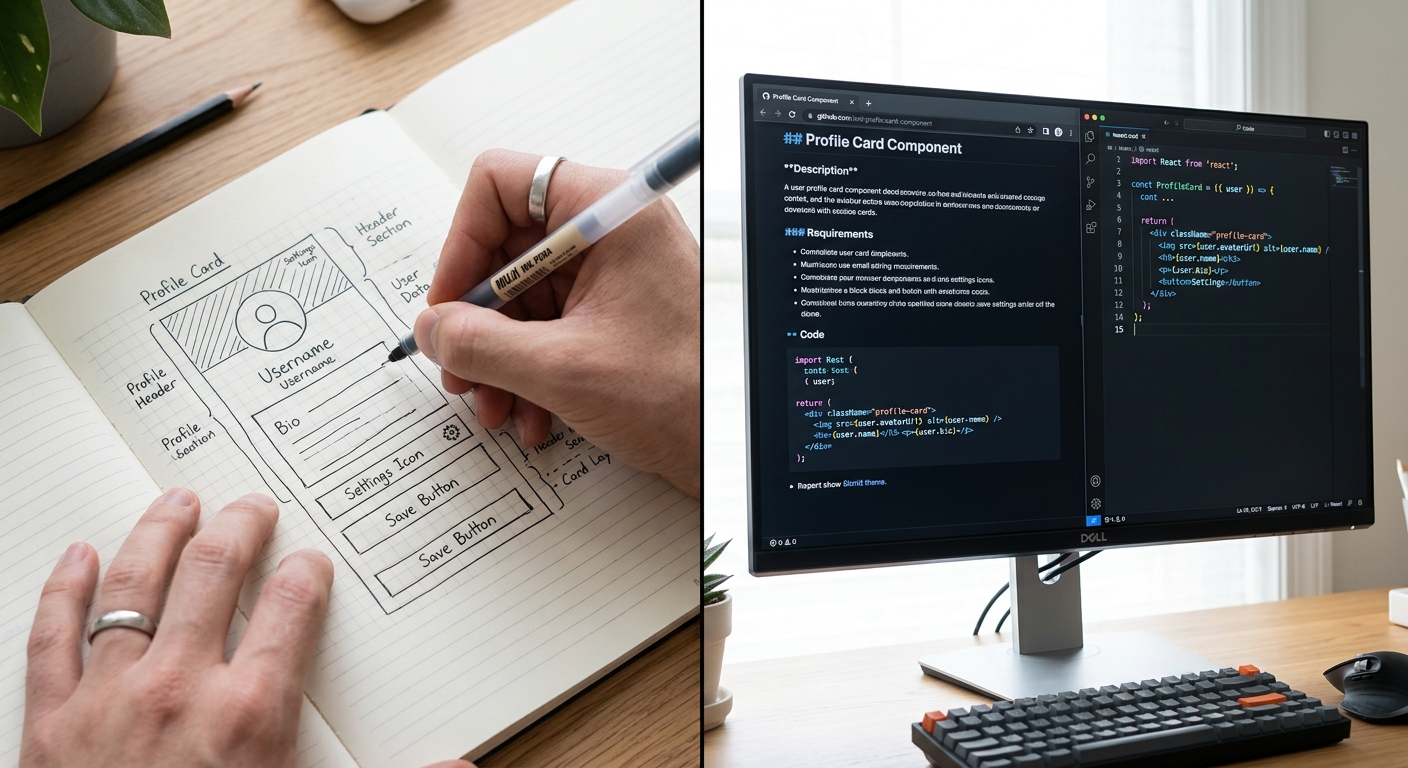
The most significant gap in any design system is the one between the designer's mockup and the developer's implementation. We can use Lovable to build functional versions of our components that are more than just static pictures.
- Open Lovable and start a new project.
- In the chat interface, describe your component using the tokens and documentation you generated in the previous steps. For example: 'Create a React button component that uses the surface-primary token for its background. It should have a subtle shadow affordance that disappears on click to mimic a physical button being pressed.'
- Lovable will generate the code and provide a preview.
- To make it a 'living' component, ask Lovable to connect it to a Supabase table. For a data table component, you might say: 'Sync this table with a Supabase bucket called UserData and allow for inline editing of the Email column.'
By doing this, you are moving away from 'dead' artifacts and toward generative UI patterns. You are creating a system where the design and the data exist in the same space.
Troubleshooting common AI friction
AI is not perfect. It can introduce its own kind of friction if you are not careful.
One common issue is 'token hallucination.' This happens when the AI suggests a color or spacing value that does not actually exist in your library. Always verify the output against your Figma variables. If Gemini suggests a 'spacing-xl' but your system only goes up to 'spacing-lg', you must correct the prompt to stay within the bounds of your existing heuristic.
Another problem is the loss of nuance. AI tends to favor the most common solution, which can lead to a generic look. If your system feels too 'templated', go back to your Midjourney explorations. Use those unique visual cues to prompt Lovable for more specific CSS overrides.
Finally, remember that AI does not understand your brand's soul. It understands patterns. You are the one who notices the small things, like the specific weight of a border or the timing of a transition, that make a system feel high-quality.
Next steps for your system
Once you have audited your tokens and built your first living components, the next step is governance. A design system is a social contract between teams. You need to decide how new components are added and who has the authority to change a token.
If you are worried about the cost of this transition, consider how you are charging for AI assisted work. Moving from manual production to AI-augmented orchestration changes your value proposition. You are no longer selling hours spent drawing rectangles. You are selling a robust, scalable infrastructure.
The 10-second swap test
To test the success of your new AI-enhanced system, run this test:
- Pick a core token, like your primary brand color.
- Change the value in your central JSON file or Figma variables.
- Use your AI workflow to update the documentation and the Lovable code.
If you can propagate that change across your design artifact, your documentation, and your live code in under 60 seconds, you have successfully removed the friction from your system. The seams are tight. The handle no longer wobbles.